Windows 11 Home Vs Pro
Windows 11 Home is the better value for most everyday users, while Windows 11 Pro is best for remote work, security, and device management. If you do not need Pro-only features, Home is usually the smarter buy.
Windows 11 Home is the better fit for most everyday users, while Windows 11 Pro is worth the extra cost if you need stronger security controls, remote access, or business management tools. In 2026, the right choice comes down less to “which is better” and more to how you actually use your PC at home or for work.
- Best default: Windows 11 Home suits most families, students, and casual users.
- Pro advantage: Windows 11 Pro adds tools for security, remote access, and business control.
- Value rule: Spend extra on better hardware before paying for Pro if you only need basic.
- Upgrade option: Many buyers can start with Home and move to Pro later if their needs.
Windows 11 Home vs Pro: Which Edition Is Right for You in 2026?
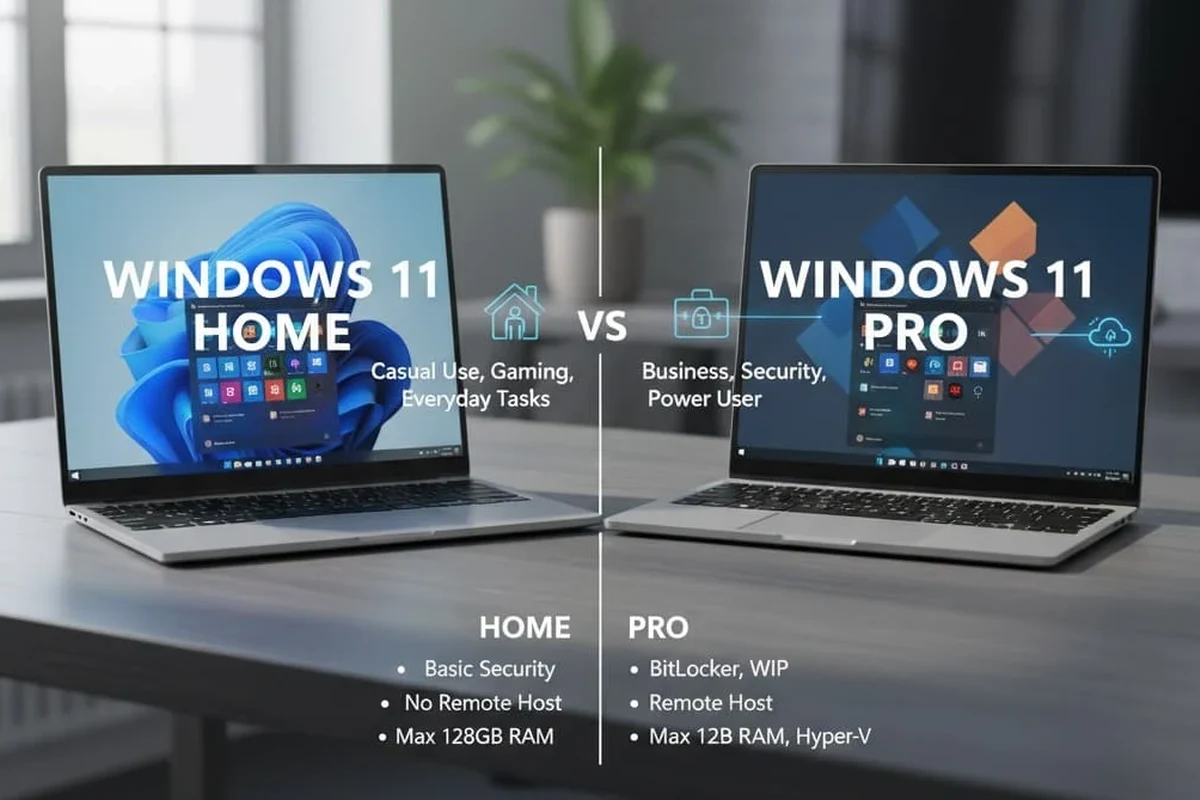
If you are choosing a new laptop or desktop, the simplest way to think about windows 11 home vs pro is this: Home covers the needs of most households, and Pro adds features aimed at remote workers, small businesses, and advanced users. For many smart-home and family setups, Home is enough; for people managing devices, sensitive files, or work logins, Pro can be the smarter long-term pick.
What Windows 11 Home and Pro Are Designed to Do
Both editions are built on the same operating system, so the everyday experience is very similar. You get the same general Windows interface, Microsoft Store access, multitasking tools, and compatibility with most common apps, printers, browsers, and smart-home companion software.
Core similarities that matter for most users
For browsing, streaming, schoolwork, video calls, photo editing, and casual gaming, the two editions behave much the same. Both support the core Windows 11 design, including Snap Layouts for organizing windows, widgets, and standard account sign-in options. If your PC is mainly for home use, these shared features matter more than the Pro-only extras.
Why Microsoft offers two editions
Microsoft separates Home and Pro to match different user needs. Home is the consumer version, while Pro is meant to support more control, stronger device administration, and workplace-friendly security settings. That division helps buyers avoid paying for features they will never use, while giving businesses the tools they need to manage multiple devices.
For smart-home readers, the key question is not whether Pro is more advanced, but whether those extra controls improve your day-to-day life at home.
Windows 11 Home vs Pro: The Key Differences That Actually Affect Buyers
The biggest differences are not cosmetic. They show up in security, remote work, virtualization, and device management. Those are the areas that can justify the upgrade.
Security and device protection
Both editions include baseline Windows security tools, but Pro adds more business-oriented controls. One of the most important is BitLocker device encryption on supported hardware, which helps protect data if a laptop is lost or stolen. Pro also offers group policy and other controls that can help more advanced users lock down settings.
For most families, Home’s built-in security features are enough when paired with strong passwords, automatic updates, and good account habits. But if you store sensitive work documents, client files, or tax records on a portable device, Pro’s extra protection may be worth considering.
Security features can vary by device hardware, manufacturer setup, and Microsoft account configuration. Always confirm the exact feature list on the PC you plan to buy.
Remote access and work-from-anywhere features
Windows 11 Pro includes Remote Desktop hosting, which lets another device connect to your PC when it is set up correctly. That matters for people who want to access a work computer from home or manage a desktop in a home office. Home can connect to other PCs remotely in some cases, but it cannot act as a Remote Desktop host in the same way Pro can.
If you only use cloud tools like email, shared drives, or video conferencing, this may not matter. If you regularly need to reach files or software on your own PC while away from it, Pro is more practical.
Business, virtualization, and management tools
Pro includes features such as Hyper-V virtualization support, Windows Sandbox, domain join, and more advanced device management options. In plain English, that means Pro is better for running test environments, isolating risky software, or connecting a PC to workplace-managed networks.
These tools are valuable for IT professionals, developers, and small-business owners. They are usually unnecessary for streaming, shopping, homework, or smart-home control panels.
Windows 11 Pro is often chosen by people who want a home office PC to behave more like a managed work machine, even if the device sits in a spare bedroom or den.
AI, productivity, and smart-home compatibility considerations
In 2026, many buyers care about AI-powered productivity tools, voice assistants, and smart-home dashboards. The edition difference is usually less important here than the device itself, the installed apps, and your Microsoft account setup. Most smart-home platforms, browser-based dashboards, and companion apps work on both editions.
That means a Home user can still run smart thermostats, cameras, lighting apps, and media controls without needing Pro. If you want a PC as a central household dashboard, focus more on screen size, performance, and connectivity than the edition name.
| Option | Best For | Key Consideration |
|---|---|---|
| Windows 11 Home | Everyday home use | Includes the core experience most people need |
| Windows 11 Pro | Work, admin, and advanced control | Adds security and management features |
Who Should Choose Windows 11 Home?
Windows 11 Home is the right default for most households. It keeps the experience simple and usually costs less, which matters if you are buying a laptop for school, family browsing, streaming, or everyday productivity.
Best fit for families, students, and everyday users
Home makes sense for students writing papers, families sharing a PC in the living room, and renters who want a reliable laptop without extra complexity. It also fits people who mainly use web apps, photo storage, email, and entertainment services.
If your computer lives in a common area and is not tied to business data, Home is usually the most sensible choice. It gives you the essentials without adding features you may never open.
When Home is the better value
Home is the better value when the price difference would be better spent on more storage, more memory, a better display, or a stronger processor. Those upgrades often improve daily comfort more than Pro-only features do.
For a smart-home setup, that can mean faster dashboards, smoother video playback, and better multitasking between browser tabs and device apps. If you are choosing between a stronger Home PC and a weaker Pro PC, the stronger hardware often wins.
Limitations to keep in mind
Home has fewer advanced controls for encryption, remote hosting, and workplace-style administration. If you later need those features, you may have to upgrade.
- Lower upfront cost
- Enough for most home use
- Simple setup and familiar experience
- Fewer advanced security tools
- Limited business management features
- May require an upgrade later for remote work
Who Should Choose Windows 11 Pro?
Windows 11 Pro is best for people who need more control over their device. That includes remote workers, power users, freelancers handling client data, and small-business owners who want a PC that can do more than standard home computing.
Best fit for remote workers, power users, and small businesses
If you regularly connect to office systems, handle confidential files, or keep your laptop with you while traveling, Pro’s extra security and remote access tools are useful. It is also a strong fit for users who like to troubleshoot, test software, or separate work tasks from personal use.
Small businesses often choose Pro because it can integrate more easily into managed environments. That does not automatically make it better for every home office, but it does make it more flexible.
When Pro justifies the extra cost
Pro justifies the higher price when one of its features saves you time, reduces risk, or replaces another tool you would otherwise need. For example, if you need BitLocker, Remote Desktop hosting, or virtualization, paying more for Pro may be cheaper than finding separate workarounds.
It can also be a smart buy if you expect your PC to serve both household and work roles for years. That is especially true for people who want one device to handle family use now and more demanding tasks later.
Potential drawbacks and overbuying risks
The main drawback is paying for features you never use. Many buyers see “Pro” and assume it is automatically better, but if your computer is mostly for browsing, streaming, and schoolwork, those extras may sit idle.
Overbuying can also happen if you choose Pro hoping it will make a slow PC feel faster. It will not. Hardware quality matters more than the edition when it comes to speed and everyday responsiveness.
- Choose Pro for features, not for performance.
- Choose Home if you are mainly comparing consumer laptops.
- Check whether your workplace already provides remote access or security tools before paying extra.
How to Compare Value: Features, Pricing, and Long-Term Use
The best value depends on both the sticker price and how long you plan to keep the PC. A small difference at checkout can be worth it if Pro prevents an upgrade later, but it is not worthwhile if you only need basic home functions.
Upfront cost vs practical benefit
Home usually gives better value for general consumers because it covers the basics at a lower cost. Pro is more valuable when its tools solve a real problem, such as protecting sensitive files or allowing secure remote access.
When comparing laptops, look at the whole package: processor, memory, storage, screen quality, battery life, and edition. A well-equipped Home PC can be a better purchase than a bare-bones Pro model.
Upgrade path from Home to Pro
Many devices can be upgraded from Home to Pro later through Microsoft’s upgrade process, though the exact method and price can vary. That makes Home a lower-risk starting point for people who are unsure.
If you are undecided, buying Home now and upgrading only if you actually need Pro later can be a sensible strategy. Just confirm the upgrade path and current pricing before you rely on that plan.
Budget considerations for new PCs and upgrades
For budget shoppers, the best use of money is often hardware first, edition second. Extra RAM or storage can improve daily use more noticeably than Pro-only features on a modest home machine.
If you are buying for a shared household, keep future needs in mind. A parent who works from home, a teen in school, and a smart-home dashboard may all use the same PC differently, so the right edition depends on the most demanding user.
Common Mistakes Buyers Make When Choosing Between Home and Pro
Most mistakes come from assuming the more expensive option is automatically the smarter one. In reality, the wrong edition can waste money or leave you short on tools you actually need.
Paying for features you will not use
Many home users buy Pro because it sounds more professional. If you do not need virtualization, domain join, or Remote Desktop hosting, that extra cost may bring little benefit.
Overlooking security and work requirements
On the other hand, some buyers choose Home and later discover they need stronger encryption or remote access. If you plan to use the laptop for freelance work, client files, or travel, check those requirements now instead of waiting.
Assuming all smart-home or gaming needs require Pro
Smart-home control, streaming, and gaming usually do not require Pro. Most apps and services work fine on Home, so do not let a smart-home setup push you into an unnecessary upgrade.
If you are also comparing the PC with other home purchases, it can help to think the same way you would when choosing between a sectional sofa vs two sofas or deciding on a platform bed frame vs standard bed frame: the right choice depends on how you live, not just on which option sounds more premium.
Safe Setup, Care, and Best Practices After You Buy
Once you choose an edition, the best next step is setting the device up carefully. Good setup habits matter more than most people realize, especially if the PC will hold family photos, school files, or work documents.
Initial setup steps that improve security
Use a strong password or passphrase, turn on multi-factor authentication where available, and sign in with the correct Microsoft account for your needs. If the device supports it, review device encryption and recovery options during setup.
Also check privacy settings, app permissions, and automatic update options before you start installing everything. A clean setup can prevent a lot of future frustration.
Follow Microsoft’s setup prompts and your PC maker’s instructions carefully. Do not skip recovery settings or security prompts if the device will store personal or work data.
Maintenance habits for performance and stability
Keep Windows updated, remove apps you do not use, and restart the PC occasionally so updates and system changes can finish properly. For laptops, follow the manufacturer’s battery guidance rather than relying on myths about charging.
If your PC is part of a larger smart-home setup, keep companion apps updated too. Home automation tools can become unreliable if the operating system or app versions drift too far apart.
Keeping your device and data protected over time
Back up important files regularly using a cloud service, external drive, or both. That is true whether you buy Home or Pro, because edition choice does not replace good backup habits.
For households with children or shared users, create separate accounts when appropriate and review permissions for shared folders or smart-home dashboards. That keeps personal files and device controls more organized.
- Update Windows and apps regularly
- Use backups for important files
- Review security settings after setup
- Ignoring update prompts for weeks
- Sharing one account across everyone in the home
- Assuming the edition alone provides complete protection
Final Verdict: The Best Windows 11 Edition for Most Home Dreams Readers
For most Home Dreams readers, Windows 11 Home is the better choice because it covers everyday home use, smart-home apps, schoolwork, streaming, and casual productivity without extra cost or complexity. Windows 11 Pro is the better pick if you need Remote Desktop hosting, stronger device control, or business-focused security features.
Transparent recommendation based on user type
Choose Home if your PC is mainly for family use, entertainment, browsing, or general household organization. Choose Pro if the device will double as a work machine, hold sensitive files, or connect to managed business systems.
When to upgrade later instead of buying Pro now
If you are unsure, start with Home and upgrade later only if a real need appears. That approach keeps your budget flexible and helps you avoid paying for advanced features before you know you will use them.
Windows 11 Home is the best value for most households, while Windows 11 Pro is worth it for remote workers, small businesses, and anyone who needs stronger security or device management. If your needs are still basic, buy Home now and upgrade later only if your workflow changes.
Common Questions
Windows 11 Home is better for most people because it includes the core features they actually use. Pro only makes sense when you need its extra controls.
Usually not in any meaningful way. Most smart-home apps and dashboards work on both editions.
Usually no, unless the student also needs work-style security or remote access. Home is typically the better value.
Often yes. Check Microsoft’s current upgrade path and pricing before you decide.
No. Performance depends on the PC’s hardware, not whether it runs Home or Pro.
Frequently Asked Questions
If you mainly browse, stream, shop, study, or use smart-home apps, Home is usually enough. It covers the everyday features most households need without the extra Pro-specific tools.
Remote workers, freelancers, small-business owners, and power users tend to benefit most. Pro is useful when security, remote access, or device management matters.
Not usually. Gaming and streaming depend more on your hardware, internet connection, and the apps you use than on the Windows edition.
Check whether you truly need the Pro-only features, and confirm the device hardware is strong enough for your tasks. Also review the manufacturer’s specs and upgrade options.
Usually yes, but follow Microsoft’s official upgrade process. Keep your files backed up before making any major operating system change.
Many people pay for Pro without using its features. Others choose Home and later realize they needed work-grade security or remote access.